File Transcription
Dictation covers what you say into the microphone. But some of the audio you care about already exists as a file: a meeting recording, an interview, a podcast episode, a video. Knowii Voice AI transcribes those too, right inside the app.
There are two ways to start:
- Drag and drop: drop one or more audio or video files anywhere onto the Knowii Voice AI window.
- From the tray: right-click the tray icon and choose Transcribe File.... A native file picker opens, filtered to the supported formats. This works even when the main window is hidden.
Either way, the app decodes the file, transcribes it with your selected model, and saves the result to your history. From there you can read it, copy it, edit it, or star it like any other transcription.
Dictation types into whatever app has focus. File transcription deliberately does not: the text goes to your history only, so a one-hour meeting cannot suddenly dump itself into your editor. The recording overlay stays hidden too.
Supported formats
The same formats the transcribe CLI accepts: mp3, wav, m4a, m4b, aac, flac, ogg, oga, opus, mp4, mkv, mov, and webm. Video files work directly. There is no need to extract the audio first, and no ffmpeg involved.
Dropping an unsupported file shows a warning and leaves the rest of the drop untouched: mixed selections are fine.
Progress and results
While a file is being processed, a progress card appears in the corner of the window, and the tray icon switches to its transcribing state.
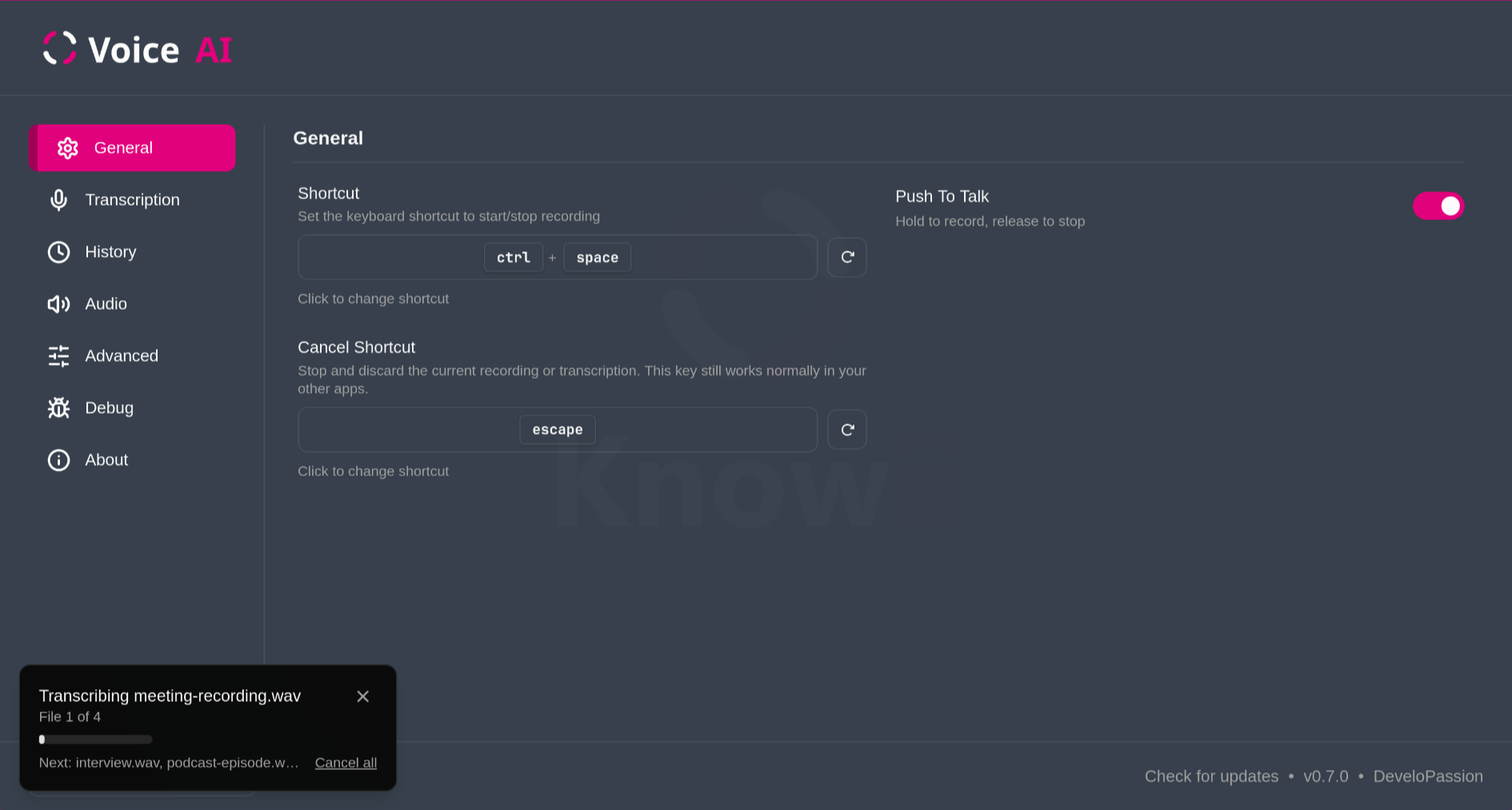 Long files are processed in segments, cut at pauses in the speech so words are never split in half, and the progress bar advances segment by segment.
When a file finishes, a notification confirms it was saved to history. If a file fails (no speech detected, unreadable file), you get a notification with the reason, and the remaining files continue.
Changed your mind? You have two levers:
- The ✕ on the progress card cancels the current file only. With several files queued, the rest of the queue continues.
- Cancel all (on the card, when more files are waiting), the tray menu's Cancel, or your cancel shortcut end the whole job.
Either way, the current segment finishes and the rest is skipped.
A few things to know
- One job at a time. Dictation and file transcription share the transcription engine, so they take turns: you cannot start a dictation while files are being transcribed, and vice versa. The app tells you when that happens.
- Long recordings stay readable. In history, long transcriptions are collapsed to a few lines with a Show more toggle.
- Only the text is stored. Your media file stays where it is; history keeps the transcription, not a copy of the audio.
- History disabled? The transcription is copied to your clipboard instead, since file transcriptions are never pasted.
- Batch from the terminal. For whole folders, scripting, or subtitle output (
srt,vtt), use thetranscribeCLI. The in-app flow is for the quick "just transcribe this" moments.
Related Documentation
- History: where file transcriptions land
- Command-Line Interface: batch transcription, subtitles, model management
- Transcription Settings: models and languages